February 2, 2026

February 2026 Product Updates

By
Dutchie
February 19, 2026
February 2, 2026

Discover our newest feature launches across Loyalty & Marketing, Mobile App, Kiosk, E-Commerce, andΒ POS built to help you sell more cannabis, faster, at higher margins.

‍

Stay up to date and ahead of the curve with all of Dutchie's product updates and system enhancements by subscribing to our Product Release Notes.

Highlighted FeaturesΒ 

VIP & Secret Menus

Build customer loyalty by gating specific products or "drops". Create exclusive collections visible only to specific segments like "Concentrate Lovers", β€œVIPs”, or top tier loyalty customers.

‍

‍

How to get started: Reward your top customers with access to products that others can’t see. First, define your audience by creating a customer Segment in Dutchie Backoffice (like "VIPs" or "Edible Lovers"). Then, head to Collections in your Dutchie E-Commerce Admin, create a new collection, and toggle on Exclusive Collection. Select your customer segment, add your products, and you’re done. Only logged-in customers in that group will be able to view and purchase those items. Read the full step-by-step guide here.

‍

Refer-A-Friend Engine

Turn your best customers into a marketing engine. You can reward customers for referring new shoppers with a tiered referral system that incentivizes high-volume referrals. Click through our demo below.

‍

‍

How to get started: Navigate to Marketing > Loyalty > Referrals in your Dutchie Backoffice to define your program rules. You can set the exact reward amounts for both the referrer and the friend, as well as a minimum spend requirement for the new customer. Once enabled, customers will automatically find their unique referral links in their Loyalty profile. See the full setup guide here.

‍

Asset Manager (Multi-Location Publishing)

Save hours managing menus across locations. Multi-unit admins can now copy collections, custom categories, and homepage sections across locations or entire states from a single Chain Admin view. Click through our demo below.

‍

‍

How to get started: To access these new multi-location tools, log in to your Dutchie Admin and click the All Locations button to enter your Chain Admin view. From there, navigate to the Assets section to select the specific Collections, Categories, Homepage Sections, and more you want to replicate. You can then copy them to specific stores or your entire network in just a few clicks. Click here for the full guide on managing chain assets.

‍

Standalone Loyalty Signup URL

Grow your customer database beyond the register. Use a standalone link or QR code on your website and at events to instantly sign shoppers up for your loyalty program.Β Click through our demo below.

‍

‍

‍How to get started: Ready to grow your loyalty program beyond the register? You can generate your unique signup link or QR code directly from your Dutchie Admin settings today. We recommend placing the QR code at your check-in desk for walk-ins, or adding the link to your social media bios to capture digital traffic. Click here to view the step-by-step guide on configuring your standalone form.

‍

Additional Updates

Growth & Loyalty

Discount GamificationΒ (Available for Dutchie E-Commerce Customers)

Drive higher cart totals by showing customers exactly how close they are to unlocking a deal. A real-time progress bar tracks their spend, triggering visual celebrations and personalized product recommendations the moment a discount is earned. Click through our demo below.

‍

‍

How to get started: This feature is enabled by default for Dutchie E-Commerce Pro customers, so you can start driving bigger basket sizes immediately. For Dutchie E-Commerce users, contact us to activate now. To see it in action, simply ensure you have active special offers configured in your Dutchie E-Commerce Admin. When a customer adds an eligible item to their cart, the progress bar will automatically appear to guide them toward the discount. Click here to see how it works.

‍

Urgency-Based Point ExpirationsΒ 

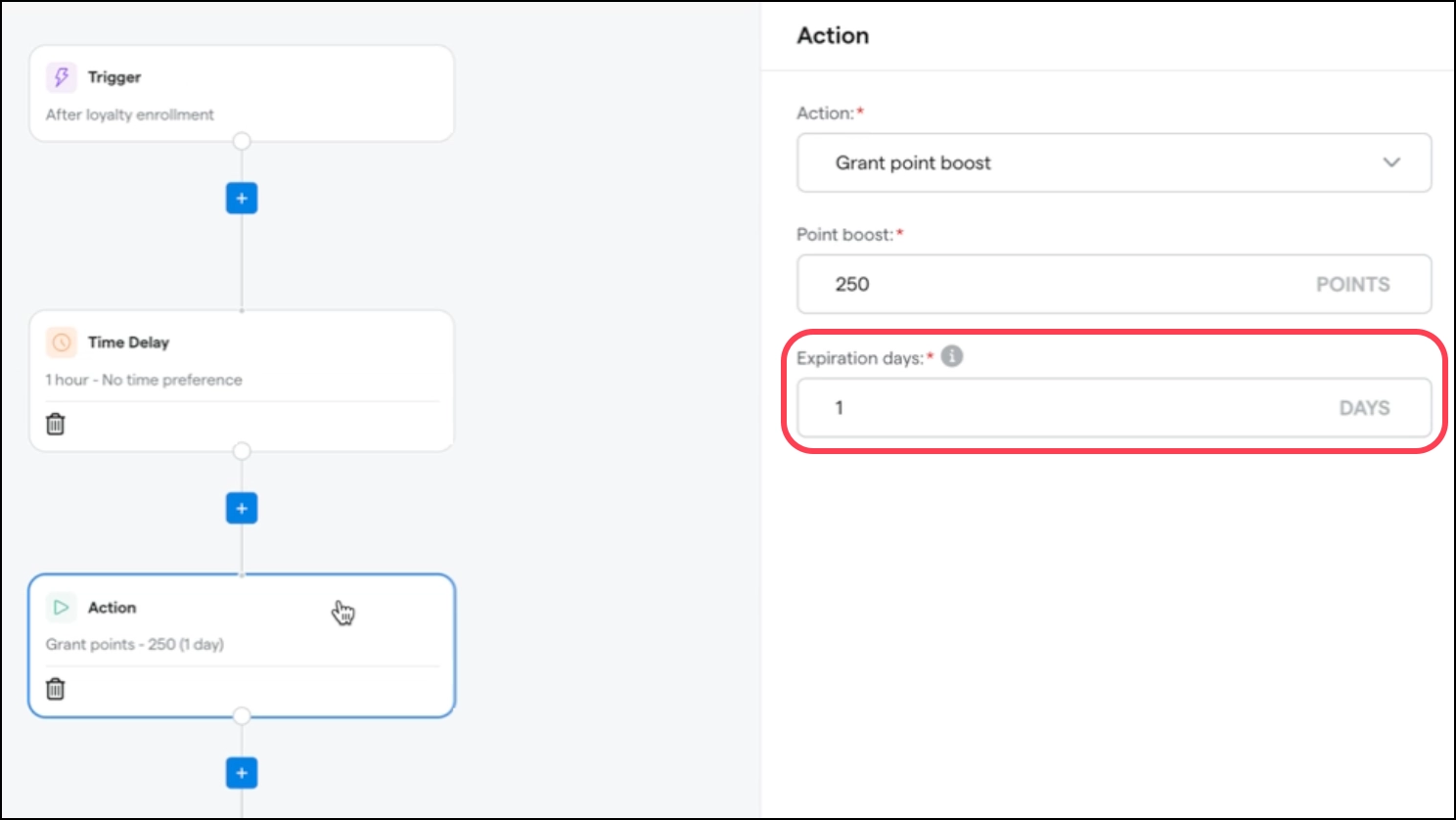
Drive repeat visits while managing loyalty liability. You can set custom expiration rules for points, such as birthday rewards expiring in 30 days, to create urgency without over-discounting.
‍

‍

How to get started: Automate your rewards by setting up a workflow that triggers whenever a customer meets your criteria, like signing up for loyalty or making a recent purchase. In the workflow builder, simply select Grant Points Boost, enter the amount, and then add a Send Email action to notify them of their reward. This ensures your customers know exactly why their balance increased. Click here for the full guide on building these workflows.

‍

E-Commerce, Mobile App & Kiosk Experience

Scheduled Banners and Collections

Plan promotions once and let them run on schedule. You can now schedule banners and collections to launch and expire automatically across web, kiosk, and mobile without manual updates. Click through our demo below.

‍

‍

How to get started: Head over to our Dutchie Admin. Collections can be found in the β€˜Collections’ tab, click here to learn how to schedule a collection. While banners can be found in the Customize tab under β€˜Image Banners’, click here to learn how to schedule a banner.

‍

Terpene Search

Help your shoppers find the exact effects they want. Customers can now search and filter by terpene profiles - even if they misspell them - making it easier to discover products based on specific flavors and feelings.

‍

How to get started: Add Terpenes in your Dutchie E-Commerce Admin to enable search. Learn how to add Terpenes to your Dutchie E-Commerce menu items here.Β 

‍

Custom App Navigation

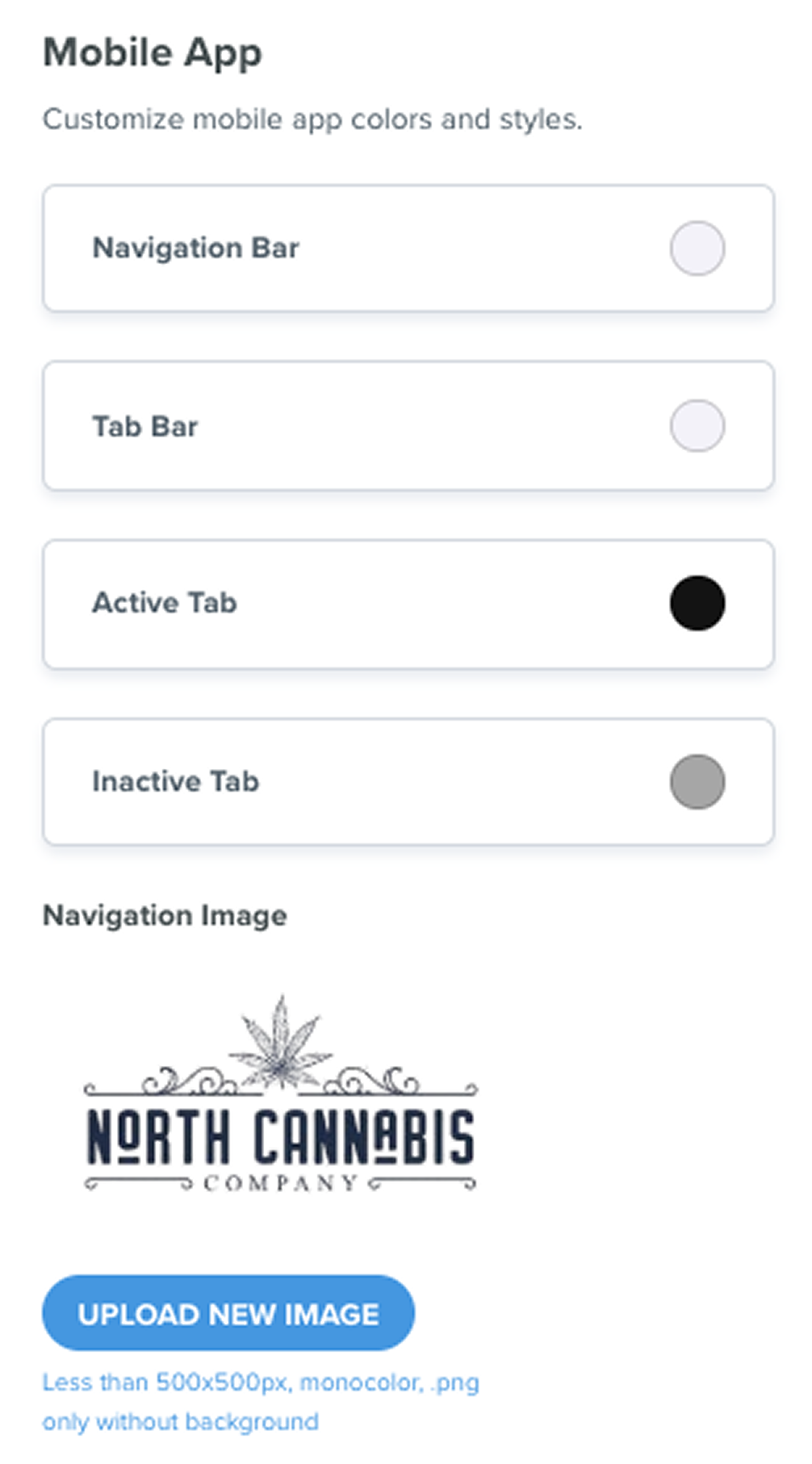
Make your app feel like your brand. You can now customize your mobile app’s navigation bar colors, upload your logo, and rename bottom-bar tabs such as changing β€œShop” to β€œOrder Now.”

‍

‍

How to get started: To make your app fully reflective of your brand, head to Customize > Theme in your Dutchie E-Commerce Admin and scroll down to the Mobile App section. Here you can upload your logo, enter your exact brand hex codes for the top and bottom bars, and rename tabs (like changing "Specials" to "Deals") to match your brand voice. Click here for the step-by-step guide.

‍

Smart Banners - The App BoosterΒ 

Convert mobile web shoppers into high-value app users. For customers browsing your menu on Safari, an automatic banner will appear at the top of the screen inviting them to download or open your app. Since app users spend 10% more and return 30% faster, this small nudge drives significant long-term revenue.

‍

‍

How to get started: Smart Banners are now live on your store menus to help drive web traffic directly to your app. This feature is automatically enabled and appears for all customers browsing your mobile site using Safari. Learn how to promote your Mobile App. It’s a seamless way to boost app adoption and retention without any extra setup. Get started with the Dutchie Mobile App.

‍

Phone Number Login for Kiosk Pro

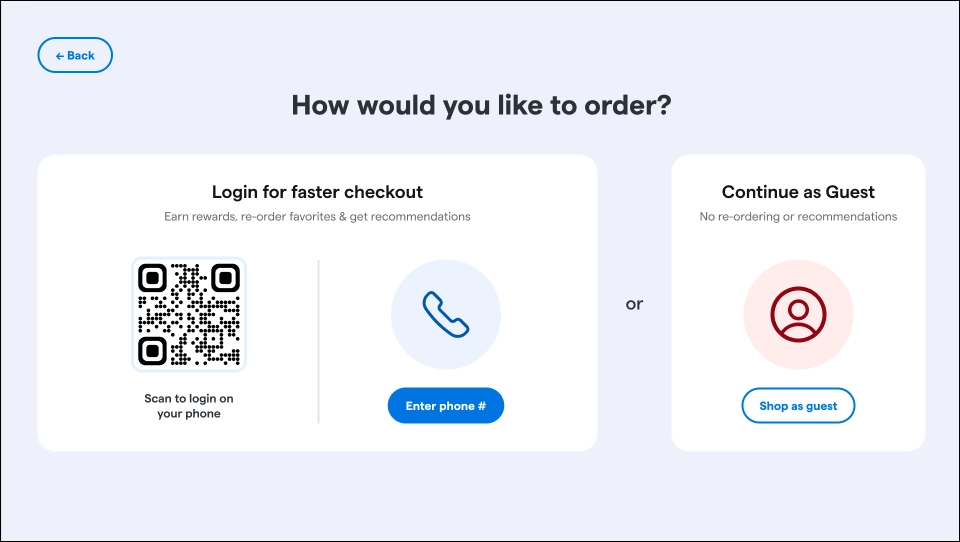
Reduce friction and speed up kiosk ordering. Customers can log in using a phone number to view loyalty points and personalized recommendations, even without scanning a QR code.
‍

‍

How to get started: This feature is turned on automatically for Kiosk Pro customers. Looking to upgrade your in-store shopping experience? ‍Click here to get started with Kiosk Pro.

‍

Dutchie POS

Undo Register Closeouts

Correct counting errors instantly. If no new sales have been made, managers can now reverse the most recent register closeout to fix mistyped cash entries or counting mistakes before they impact your daily accounting and reporting.

‍

How to get started: To learn more about closing out registers in Dutchie POS, head to our Help Center and check out our guide: How to manage register closeout in Dutchie POS for step-by-step instructions to help prevent loss and save time.Β 

‍

Round Up the Change Program

Empower customers to make a difference by rounding up their purchase total. The round up feature on Dutchie POS is free to enable and can be turned on in just a few clicks.

‍

‍

Read the full press release here and learn more about Dutchie's Round Up program partners.

‍

‍

Ready to see how these new features can drive growth? Schedule time with your account manager to activate them.

Discover our newest feature launches across Loyalty & Marketing, Mobile App, Kiosk, E-Commerce, andΒ POS built to help you sell more cannabis, faster, at higher margins.

‍

Stay up to date and ahead of the curve with all of Dutchie's product updates and system enhancements by subscribing to our Product Release Notes.

Highlighted FeaturesΒ 

VIP & Secret Menus

Build customer loyalty by gating specific products or "drops". Create exclusive collections visible only to specific segments like "Concentrate Lovers", β€œVIPs”, or top tier loyalty customers.

‍

‍

How to get started: Reward your top customers with access to products that others can’t see. First, define your audience by creating a customer Segment in Dutchie Backoffice (like "VIPs" or "Edible Lovers"). Then, head to Collections in your Dutchie E-Commerce Admin, create a new collection, and toggle on Exclusive Collection. Select your customer segment, add your products, and you’re done. Only logged-in customers in that group will be able to view and purchase those items. Read the full step-by-step guide here.

‍

Refer-A-Friend Engine

Turn your best customers into a marketing engine. You can reward customers for referring new shoppers with a tiered referral system that incentivizes high-volume referrals. Click through our demo below.

‍

‍

How to get started: Navigate to Marketing > Loyalty > Referrals in your Dutchie Backoffice to define your program rules. You can set the exact reward amounts for both the referrer and the friend, as well as a minimum spend requirement for the new customer. Once enabled, customers will automatically find their unique referral links in their Loyalty profile. See the full setup guide here.

‍

Asset Manager (Multi-Location Publishing)

Save hours managing menus across locations. Multi-unit admins can now copy collections, custom categories, and homepage sections across locations or entire states from a single Chain Admin view. Click through our demo below.

‍

‍

How to get started: To access these new multi-location tools, log in to your Dutchie Admin and click the All Locations button to enter your Chain Admin view. From there, navigate to the Assets section to select the specific Collections, Categories, Homepage Sections, and more you want to replicate. You can then copy them to specific stores or your entire network in just a few clicks. Click here for the full guide on managing chain assets.

‍

Standalone Loyalty Signup URL

Grow your customer database beyond the register. Use a standalone link or QR code on your website and at events to instantly sign shoppers up for your loyalty program.Β Click through our demo below.

‍

‍

‍How to get started: Ready to grow your loyalty program beyond the register? You can generate your unique signup link or QR code directly from your Dutchie Admin settings today. We recommend placing the QR code at your check-in desk for walk-ins, or adding the link to your social media bios to capture digital traffic. Click here to view the step-by-step guide on configuring your standalone form.

‍

Additional Updates

Growth & Loyalty

Discount GamificationΒ (Available for Dutchie E-Commerce Customers)

Drive higher cart totals by showing customers exactly how close they are to unlocking a deal. A real-time progress bar tracks their spend, triggering visual celebrations and personalized product recommendations the moment a discount is earned. Click through our demo below.

‍

‍

How to get started: This feature is enabled by default for Dutchie E-Commerce Pro customers, so you can start driving bigger basket sizes immediately. For Dutchie E-Commerce users, contact us to activate now. To see it in action, simply ensure you have active special offers configured in your Dutchie E-Commerce Admin. When a customer adds an eligible item to their cart, the progress bar will automatically appear to guide them toward the discount. Click here to see how it works.

‍

Urgency-Based Point ExpirationsΒ 

Drive repeat visits while managing loyalty liability. You can set custom expiration rules for points, such as birthday rewards expiring in 30 days, to create urgency without over-discounting.

‍

‍

How to get started: Automate your rewards by setting up a workflow that triggers whenever a customer meets your criteria, like signing up for loyalty or making a recent purchase. In the workflow builder, simply select Grant Points Boost, enter the amount, and then add a Send Email action to notify them of their reward. This ensures your customers know exactly why their balance increased. Click here for the full guide on building these workflows.

‍

E-Commerce, Mobile App & Kiosk Experience

Scheduled Banners and Collections

Plan promotions once and let them run on schedule. You can now schedule banners and collections to launch and expire automatically across web, kiosk, and mobile without manual updates. Click through our demo below.

‍

‍

How to get started: Head over to our Dutchie Admin. Collections can be found in the β€˜Collections’ tab, click here to learn how to schedule a collection. While banners can be found in the Customize tab under β€˜Image Banners’, click here to learn how to schedule a banner.

‍

Terpene Search

Help your shoppers find the exact effects they want. Customers can now search and filter by terpene profiles - even if they misspell them - making it easier to discover products based on specific flavors and feelings.

‍

How to get started: Add Terpenes in your Dutchie E-Commerce Admin to enable search. Learn how to add Terpenes to your Dutchie E-Commerce menu items here.Β 

‍

Custom App Navigation

Make your app feel like your brand. You can now customize your mobile app’s navigation bar colors, upload your logo, and rename bottom-bar tabs such as changing β€œShop” to β€œOrder Now.”

‍

‍

How to get started: To make your app fully reflective of your brand, head to Customize > Theme in your Dutchie E-Commerce Admin and scroll down to the Mobile App section. Here you can upload your logo, enter your exact brand hex codes for the top and bottom bars, and rename tabs (like changing "Specials" to "Deals") to match your brand voice. Click here for the step-by-step guide.

‍

Smart Banners - The App BoosterΒ 

Convert mobile web shoppers into high-value app users. For customers browsing your menu on Safari, an automatic banner will appear at the top of the screen inviting them to download or open your app. Since app users spend 10% more and return 30% faster, this small nudge drives significant long-term revenue.

‍

‍

How to get started: Smart Banners are now live on your store menus to help drive web traffic directly to your app. This feature is automatically enabled and appears for all customers browsing your mobile site using Safari. Learn how to promote your Mobile App. It’s a seamless way to boost app adoption and retention without any extra setup. Get started with the Dutchie Mobile App.

‍

Phone Number Login for Kiosk Pro

Reduce friction and speed up kiosk ordering. Customers can log in using a phone number to view loyalty points and personalized recommendations, even without scanning a QR code.

‍

‍

How to get started: This feature is turned on automatically for Kiosk Pro customers. Looking to upgrade your in-store shopping experience? ‍Click here to get started with Kiosk Pro.

‍

Dutchie POS

Undo Register Closeouts

Correct counting errors instantly. If no new sales have been made, managers can now reverse the most recent register closeout to fix mistyped cash entries or counting mistakes before they impact your daily accounting and reporting.

‍

How to get started: To learn more about closing out registers in Dutchie POS, head to our Help Center and check out our guide: How to manage register closeout in Dutchie POS for step-by-step instructions to help prevent loss and save time.Β 

‍

Round Up the Change Program

Empower customers to make a difference by rounding up their purchase total. The round up feature on Dutchie POS is free to enable and can be turned on in just a few clicks.

‍

‍

Read the full press release here and learn more about Dutchie's Round Up program partners.

‍

‍

Ready to see how these new features can drive growth? Schedule time with your account manager to activate them.

About the author
Dutchie
The Dutchie Squad